
 Pipeline & Proposals
 Project Management
 Resource Planning
 Time & Costs
 WIP & Invoicing
 Commercial Reporting
 Consulting Engineers
 Architects
 Town Planners
 Building Designers
Switching from Abtrac to Drum: A Step-by-Step Guide

Ben Walker
Written for Drum

In This Article
To switch from Abtrac cleanly, you need four things: a full data export, a short list of what to move, a tested Xero or MYOB connection and one firm cut-off date. Get those right and your first month-end in the new system feels routine.
Most of the stress in an Abtrac migration comes from skipping one of them. A missed tracking category turns into a week of journal fixes. A soft cut-off date leaves half your team logging time in the old system.
This guide walks you through each step of moving from Abtrac to Drum, in the order we see work best. If you’re still deciding whether to move at all, start with our Abtrac alternative guide or our Abtrac pricing and review. This page assumes you’ve decided.
Before You Switch from Abtrac: Set the Goal and the Date
Why are you moving? Write the answer down in one line, because it will settle every argument later.
Step 1: Name the result you need. It might be daily time entry, every variation logged against the budget, or a WIP report nobody rebuilds in Excel. Make it measurable. For example: “Every project manager can check job health in under a minute.”
Step 2: Pick a cut-off date and protect it. Choose the date your switch from Abtrac takes effect. After it, all new time, costs and invoices go into Drum. The start of a month works well, because your last Abtrac month-end closes the books before Drum takes over. Tell the whole firm the date early, and don’t let it slide.
Step 3: Check your Abtrac notice terms. Abtrac has no fixed-term contract, so you can stop paying monthly. Its FAQ also says your data is purged three months after access is suspended. Plan your export well before that window closes.
So what comes first? Getting your data out.
Abtrac Data Migration: What to Export and What to Leave Behind
Your Abtrac data migration has two jobs. You need clean records to load into Drum, and you need a full archive for the years ahead.
Step 4: Request the full data export. In Abtrac, go to Administration, then Settings, then Subscription Details, and click Export Data. Abtrac emails a zip of CSV files within 24 hours, according to its export guide. A typical export covers employees, charge rates, clients and contacts, jobs and tasks, invoices, timesheets and disbursements. Abtrac charges a fee for this curated export, and notes that “Abtrac cannot guarantee that all field types are supported.” Ask for the price up front.
Step 5: Pull the reports the zip won’t give you. The CSVs hold raw records, not positions. Export these reports to Excel as at your cut-off date:
- Open WIP by job (unbilled time and disbursements)
- Fee position by job: agreed fee, billed to date, remaining
- Approved and pending variations
- Aged debtors
- Current charge rates by staff member
These numbers become your opening balances in Drum. Check each report’s totals against the Abtrac print preview before you trust the spreadsheet.
Step 6: Decide what moves and what stays behind. You don’t need to move everything. Most firms move:
- Active clients and their contacts
- Open jobs, with stages, fees and budgets
- Staff, roles and charge rates
- Open WIP and unbilled amounts at cut-off
- Live fee proposals you are still chasing
Leave behind closed jobs, clients you haven’t billed in years, and old lookup lists nobody uses. Old timesheet history is a judgement call. Keep it in the archive rather than loading years of detail you will rarely open.
Step 7: Keep an archive you can find. The ATO says “you need to keep most records for 5 years”. Store the full export zip and your cut-off reports somewhere safe and named, such as a shared drive folder called “Abtrac archive, cut-off date”. Your accountant will thank you at audit time.
Step 8: Load the data with Drum’s team. Drum’s team helps with the Abtrac data migration itself, moving client, job and staff data so you are not rebuilding records by hand. You review a sample, fix any mapping issues, then load the rest.
Set Up and Test Xero or MYOB Before Go-Live
Here’s where most Abtrac migrations wobble. Your accounting file is the source of financial truth, so test it before a single real invoice goes out.
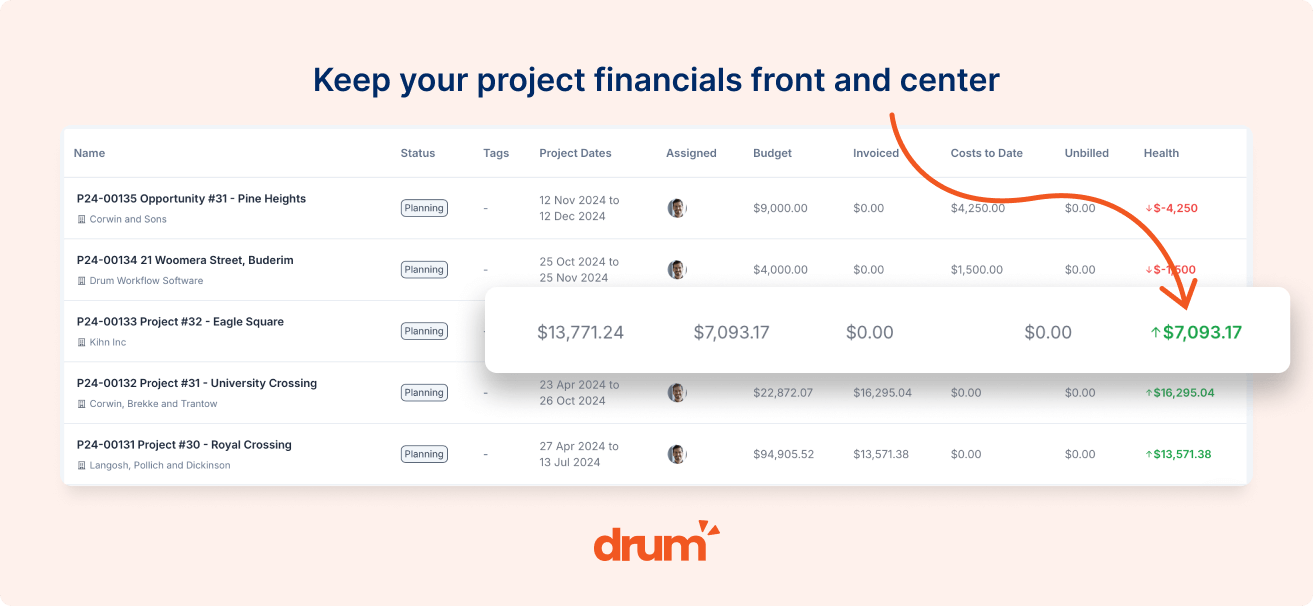
Step 9: Connect Drum to your accounting file. Drum connects to Xero, MYOB or QuickBooks. With Xero, it reads your tax rates, tracking categories and account codes, so your invoices land with the right codes. If you use MYOB, confirm the same fields during setup.
Step 10: Test every transaction type you use. Abtrac’s own Xero guide shows what moved each way in your old setup. Use it as a checklist and run one test of each in Drum:
- A client invoice with GST at 10%
- An invoice using each tracking category you report on
- An invoice line on each income account code you use
- A credit note against a test invoice
- A supplier bill, if you track sub-consultant costs or disbursements
- A payment marked in Xero or MYOB, then checked back in Drum
Void or delete the test records once you have checked each one in both systems. Write down what moved, which way it moved and anything that still needs a person.
Step 11: Turn off Abtrac’s accounts link at cut-off. Two systems pushing invoices into one Xero file is a recipe for duplicates. Disconnect Abtrac’s link on the cut-off date, after its final invoices have synced.
Once the numbers flow cleanly, you’re ready to bring your team across.
Go Live: Parallel Run, Training and Your First Month-End
Step 12: Run both systems for a short, fixed period. During this stage of the Abtrac migration, keep Abtrac open, read only in practice, for a set window after cut-off. Your team can look up old jobs there while they learn Drum. All new work goes into Drum only. Two live sets of figures are worse than one old set.
Step 13: Train people on their own work. One long tour for the whole firm wastes most of the room’s time. Short sessions by role stick better:
- Staff: log time, fix a wrong entry and find the hours left on a job in Drum’s time tracking.
- Project managers: read budget, WIP and variations, and finish a progress claim.
- Finance: review the claim run, push invoices to Xero or MYOB and handle a credit note.
- Directors: read firm-wide WIP, cashflow and project health without asking anyone for a spreadsheet.
Drum offers guided setup and training, and its support team works on Australian east coast time.
Step 14: Run your first month-end in Drum. This is the real test. At month-end, Drum starts a claim for every live project with WIP. Each project owner checks and finishes their own claim. Finance then reviews the batch and sends it to your accounting file.
That claim run matters if your firm looks anything like the 45-person civil engineering firm in our Abtrac alternative guide. Before Drum, its project managers emailed progress claims to one finance manager each month, who processed them outside Abtrac. Month-end billing sat with one person. A claim run that every project owner can finish spreads that load across the team.
If you’d like to see the claim run on one of your own jobs before you commit, book a demo and bring a messy one.
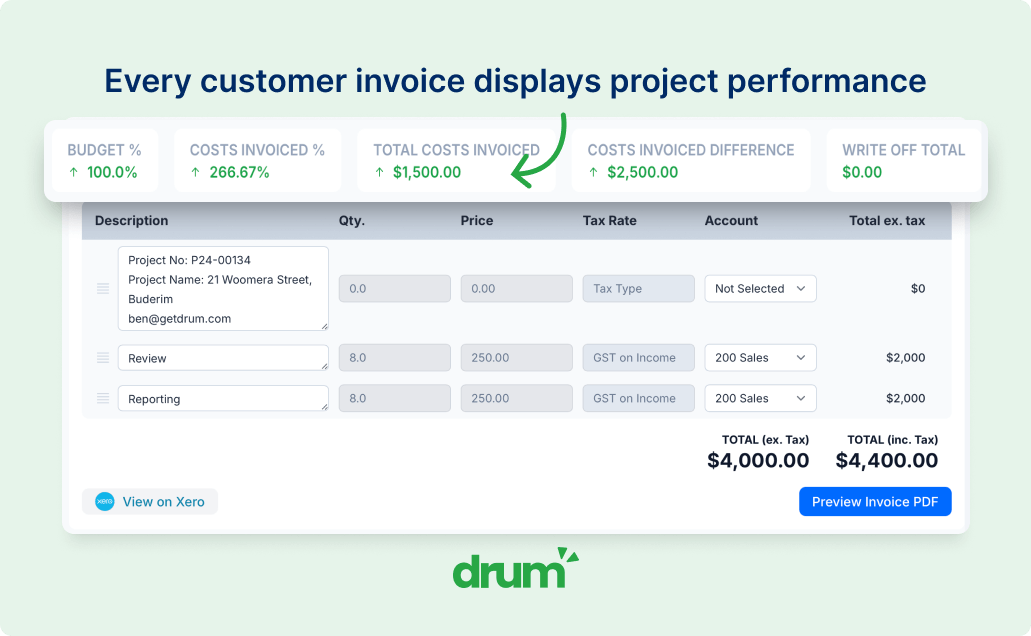
Step 15: Review after 30 days. Go back to the result you wrote in Step 1. Is time entry daily? Are variations logged? Did month-end close without a side spreadsheet? Fix what isn’t working while habits are still forming.
Your Abtrac to Drum Timeline and Next Step
How long does an Abtrac to Drum move take? Most firms are live on Drum within 14 days. A plan that fits that window might look like this:
| Stage | What happens |
|---|---|
| Before day 1 | Set the goal and cut-off date, request the Abtrac export |
| Week 1 | Clean the data, load a sample, connect and test Xero or MYOB |
| Week 2 | Load the full data, train by role, go live on the cut-off date |
| First month-end | Run the claim run in Drum, close Abtrac’s accounts link |
| Day 30 | Review against your Step 1 goal |
Your timing will depend on how much history you move and how quickly your team can attend training. Keeping the scope tight is the easiest way to stay inside that window.
The pattern behind a smooth switch from Abtrac is simple. Export everything, move only what’s live, test the accounting file before real invoices go out, and protect your cut-off date. Do that and you swap a familiar system for one source of truth, from enquiry to invoice, without a messy month-end.
If you’re ready to switch from Abtrac, Drum’s team will plan the move with you, starting from your own data.
Frequently Asked Questions
How long does it take to switch from Abtrac to Drum? Most firms are live on Drum within 14 days. The time depends on how much history you move, how clean your data is, and how quickly your team completes training. Allow for your first month-end in Drum before judging the move a success.
Can I export all my data from Abtrac? Yes. Abtrac offers a full data export as a zip of CSV files, emailed within 24 hours of your request, covering clients, jobs, staff, rates, invoices, timesheets and disbursements. Abtrac charges a fee for this export and notes that not every field type is supported. Abtrac also purges your data three months after your access is suspended, so export before you cancel.
What does an Abtrac migration cost? On the Drum side, your subscription is $225 AUD a month for the first five seats plus $45 per extra seat on Drum Complete (excluding GST), and Drum’s team helps move your client, job and staff data. On the Abtrac side, ask for the price of the full data export, because it is not published. Budget staff time too, for data cleaning, Xero or MYOB testing and role-based training.
Planning your move off Abtrac?
Drum's team helps you move clients, jobs and staff, test your Xero or MYOB file and train each role, so your first month-end runs from one source of truth.
Start your free 14-day trial of Drum today.