
 Pipeline & Proposals
 Project Management
 Resource Planning
 Time & Costs
 WIP & Invoicing
 Commercial Reporting
 Consulting Engineers
 Architects
 Town Planners
 Building Designers
Drum + QuickBooks Integration: How It Works and What It Automates

Ben Walker
Written for Drum
In This Article
How Drum Integrates With QuickBooks
Does Drum integrate with QickBooks? You bet! Drum integrates with QuickBooks, creating a direct connection between your project management and your accounting. This link is all about automating the flow of data, saying goodbye to manual double-entry, and giving you a live, honest look at your firm’s financial health.
Why QuickBooks Integration Is a Must-Have for Modern Firms
Picture this: your project manager is hunched over a desk at the end of the month, painstakingly matching billable hours from Drum with invoices in QuickBooks. It’s a frustrating, tedious process, and it’s a huge bottleneck for consulting and architecture firms. This kind of manual work leads to costly errors, delayed payments, and a completely skewed picture of project profitability. It’s a high-risk, low-reward task that just burns through your team’s valuable time.
Connecting your project management software directly to your accounting system isn’t just a small tweak; it’s a fundamental shift in how your business runs. The goal is to create one single, reliable source of truth where your day-to-day operational data flows effortlessly into your financial records.
The true cost of disconnected systems. When your project data and financial data live in separate silos, you’re always playing catch-up. This disconnect forces your team into a reactive mode, constantly hunting down invoicing mistakes or manually reconciling payments after the fact.
For example, an architecture firm might track project milestones in one system but create invoices in another. If a project phase is completed and an invoice is forgotten, that revenue might not be billed for weeks, seriously impacting cash flow. Manual data entry alone is often a massive source of frustration. In fact, a staggering 41% of accountants say that dealing with manual errors is one of their biggest challenges. This is exactly where a direct integration becomes so valuable.
By automating the flow of information between Drum and QuickBooks, you can reclaim dozens of hours every single month. This frees up your team to focus on strategic, high-value work like client management and business development instead of mind-numbing data entry.
A unified view of financial performance. Integrating Drum with QuickBooks gives you a clear, real-time window into your firm’s financial performance. You can track project budgets, keep an eye on expenses, and see profitability metrics without having to jump between different platforms. This connected workflow empowers you to make smarter, data-driven decisions on the fly. You can see how Drum provides deeper insights into your financial performance metrics to understand just how powerful this can be.
Here’s a quick look at how the data flows to eliminate the need for manual double entry.

This really gets to the core benefit of integration: turning a complex, error-prone process into one that’s automated and efficient.
Choosing an integration partner that aligns with the industry standard is also crucial. QuickBooks holds a commanding 62.23% market share in accounting software, and small businesses—the backbone of the professional services industry—make up 62% of its user base. This market dominance makes it the clear choice for firms aiming for financial precision. You can dig into these QuickBooks market share statistics to see how they reflect what’s happening across the industry.
Preparing for a Smooth QuickBooks Connection
Before you even think about hitting that “connect” button, a little prep work can be the difference between a smooth, one-and-done setup and hours spent chasing down frustrating sync errors. Think of it as your pre-flight checklist. Taking a few moments now to get your data in order ensures that when Drum and QuickBooks start talking, the information flows exactly where it needs to go.
This isn’t just about ticking off boxes. It’s about laying a solid foundation for your firm’s financial accuracy. The goal is to make sure both systems are speaking the same language before the conversation starts.
Align your accounts and customers. First up, pop open your Chart of Accounts in QuickBooks. Is it clean and up-to-date? Now’s the time to archive any old or redundant accounts you no longer use for invoicing. A tidy chart of accounts will make the data mapping process a whole lot simpler later on.
Next, do a quick audit of your active clients. A classic snag we see all the time is a slight mismatch in a customer’s name between Drum and QuickBooks (think “ABC Corp” versus “ABC Corporation Inc.”). Run through your list and make sure every active client in Drum has a corresponding, identically named customer record in QuickBooks.
This simple alignment step is huge. It stops the integration from creating duplicate customers, which can turn your books into a real mess, fast.
Key preparation steps. To get everything squared away, focus on these three areas:
- Confirm Your Plan: The Drum integration is built to work best with QuickBooks Online plans like Plus and Advanced. It’s worth double-checking your subscription to make sure you have access to all the features needed for a complete sync.
- Standardize Tax Rates: Mismatched tax rates are probably the most common cause of invoice sync failures. For instance, if you have “CA Sales Tax” in Drum but “California Sales Tax” in QuickBooks, the sync will fail. Take a minute to verify that the tax codes and rates you use in Drum are set up with the exact same names and percentages in QuickBooks.
- Review Open Invoices: It’s a good idea to decide on a “go-forward” date for the integration. We generally recommend handling any in-progress invoices using your old workflow and then starting fresh with Drum for everything new.
Think of this as setting the stage for automation. By cleaning up your data beforehand, you’re not just connecting two pieces of software. You’re building a reliable, automated financial workflow that you can actually trust.
Taking these steps helps guarantee a smooth transition. For consulting firms looking to really dial in these processes, knowing how to delegate financial tasks can also make a big difference. You can find some practical advice on that in our guide on delegating financial integration tasks for your team.
Connecting Drum and QuickBooks: A Practical Walkthrough
Alright, let’s get hands-on and connect these two powerhouses. Linking your Drum workspace to your QuickBooks account is pretty straightforward, and we’ll walk you through it so you feel confident every step of the way. Think of this less as a dry technical manual and more as a friendly guide to getting it done right.
The goal here is simple: forge a secure, authorized link that lets your project data flow right into your financial records. We’ll start in your Drum dashboard and finish up with your initial sync settings ready for action.
Kicking off the connection from Drum. First things first, head over to the Settings area in your Drum account. You’re looking for a section called “Integrations” or “Connected Apps.” Think of it as your command center for linking up with other tools. Spot the QuickBooks logo and give it a click.
This will bounce you over to the official Intuit login page. It’s a secure redirect, and it’s important to know that Drum never sees or stores your QuickBooks password. The whole process is handled using OAuth, an industry-standard protocol that keeps your financial data private and protected.
Once you pop in your QuickBooks credentials and hit “approve,” you’ll be whisked right back into your Drum dashboard to get the sync configured. Easy as that.
Dialing in your initial sync settings. With the accounts now talking to each other, you need to lay down some ground rules for how Drum handles the data it sends over. This is where you establish the basic handshake between the two systems.
Before you finalize your settings, it’s a good idea to have a clear plan for your accounts and taxes inside QuickBooks. A little prep work here goes a long way.
Here are the key settings you’ll be looking at initially:
- Default Income Account: Where should the money from new invoices land? For example, you can choose “Consulting Services Revenue” right from your Chart of Accounts.
- Default Expense Account: If you pass billable expenses through to clients, select a default account for them here, like “Reimbursable Project Expenses.”
- Sync Start Date: This one is critical. Our friendly advice? Set it to today’s date or a future one. This prevents a flood of old, closed-out invoices from syncing over and creating a mess in your books.
Think of this initial setup as creating the foundational handshake between the two platforms. Getting these core settings right from the start prevents sync errors and ensures your financial data lands exactly where it should in your books.
Imagine running a busy consulting engineering firm. Projects span months, teams track hours across multiple sites, and invoices need to be perfect. For firms like this, a solid QuickBooks integration isn’t just nice; it’s essential. An incredible number of companies in custom software, financial services, and management consulting already rely on QuickBooks Online.
Drum, as a cloud-based PSA platform built for firms like yours, plugs right into that ecosystem. It syncs invoices, expenses, and time entries, eliminating the frustrating data silos that plague 41% of accountants who wrestle with integration challenges. This is how a tool that integrates with QuickBooks becomes the engine for a modern professional services firm. You can learn more about the widespread adoption of QuickBooks Online and see its impact across different sectors for yourself.
QuickBooks Online plan compatibility with Drum integration. Before you get started, it’s smart to double-check that your QuickBooks Online plan supports the integration features you need. Not all subscriptions are created equal, and this quick reference will help you confirm you’re on the right track.
| Feature | Simple Start | Essentials | Plus | Advanced |
|---|---|---|---|---|
| Invoice Syncing | ✅ | ✅ | ✅ | ✅ |
| Customer/Client Syncing | ✅ | ✅ | ✅ | ✅ |
| Expense & Bill Syncing | ❌ | ✅ | ✅ | ✅ |
| Time Tracking Syncing | ❌ | ❌ | ✅ | ✅ |
| Project Budget Tracking | ❌ | ❌ | ✅ | ✅ |
| Custom Field Mapping | ❌ | ❌ | ❌ | ✅ |
As you can see, while basic invoice and customer syncing works across the board, more advanced features like time tracking and expense syncing require at least the Plus or Advanced plans. Make sure your plan aligns with your firm’s operational needs to get the most out of the connection.
Mapping Your Data for Perfect Financial Syncing
Once Drum and QuickBooks are connected, the real magic begins. This next part is all about teaching the two systems to speak the same language through a process called data mapping. Think of it as creating a definitive rulebook for your financial data, making sure every invoice, customer, and tax code flows precisely where it belongs.
This isn’t just a technical step; it’s a strategic one. Getting your mapping right is what turns a simple connection into an automation powerhouse that keeps your books clean and your reporting spot-on. It’s how you guarantee that the hard work your team tracks in Drum is perfectly reflected in your financial statements.
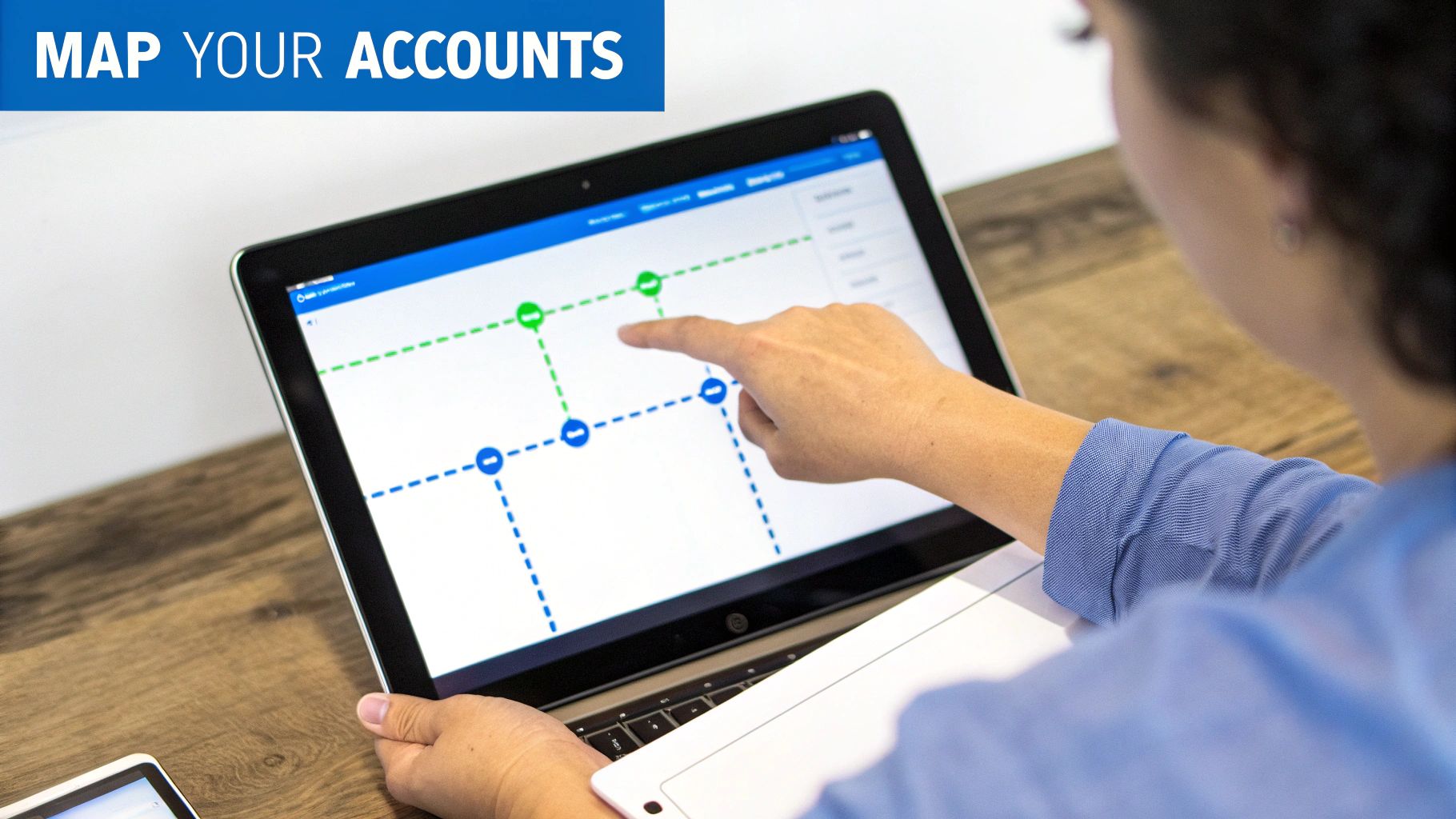
From projects to profits: a real-world example. Let’s make this practical. Imagine you run a marketing agency that offers different services, from brand strategy to paid media management. In QuickBooks, you’ve wisely set up separate income accounts to track the profitability of each service line.
Data mapping is how you connect the dots. When your team creates an invoice in Drum for a “Brand Strategy” project, the integration needs to know exactly which income account to credit in QuickBooks.
During the mapping process, you’ll create a rule that looks something like this:
- IF a service in Drum is “Brand Strategy”
- THEN post the revenue to the “Consulting Revenue: Branding” income account in QuickBooks.
- IF a service is “Paid Media Management”
- THEN post it to “Services: Ad Management.”
This level of detail is crucial. It automates your revenue allocation, saving your finance team from the monthly headache of manually categorizing income from a generic sales account.
Aligning customers, new and old. A common question we get is how the integration handles customer records. What happens if a client already exists in QuickBooks but you’ve just added them to Drum? The mapping process handles this gracefully.
Drum scans your QuickBooks customer list and lets you link existing records. For a client named “Apex Innovations” in Drum, you can map it directly to the “Apex Innovations Inc.” record in QuickBooks. No more duplicates.
For brand-new clients added in Drum, the system will automatically create a new, perfectly matched customer record in QuickBooks the first time an invoice syncs. This keeps your client lists consistent across both platforms without any manual clean-up. For more detail, check out our guide on how to simplify your process for invoicing in QuickBooks Online.
Pro Tip: Set a default income account for any unmapped items. This acts as a safety net. If a new service is created in Drum but not yet mapped, the revenue will flow to a designated “Uncategorized Income” account in QuickBooks instead of causing the sync to fail.
Handling line items and tax codes. The same mapping logic applies to invoice line items and tax codes, which is absolutely essential for any business that integrates with QuickBooks. Each service or product you offer in Drum can be mapped to a corresponding “Product/Service” item in QuickBooks.
This ensures every single line item on your invoice is categorized correctly, giving you granular reporting on what you’re actually selling.
Likewise, you’ll map the tax rates in Drum (e.g., “State Sales Tax - 6%”) to the identical tax codes in QuickBooks. This alignment is non-negotiable for accurate financial reporting and tax compliance. It guarantees that the sales tax you collect in Drum is correctly recorded and remitted in QuickBooks, keeping your books audit-proof and reliable.
Troubleshooting Common Sync Issues and Best Practices
Even with the slickest integrations, you’ll eventually run into a little bump in the road. It happens to the best of us! But don’t worry—most sync issues between Drum and QuickBooks are simple to sort out once you know what to look for. This section is your friendly field guide to keeping that connection running smoothly and fixing common hiccups fast.
Honestly, a few good habits will prevent 90% of sync errors from ever happening. Think of it as a bit of preventative maintenance for your financial workflow. These simple routines ensure your data stays clean, accurate, and perfectly in sync.
The most important habit? Establishing a single source of truth. Once you’ve connected Drum and QuickBooks, all new invoices must be created and sent from Drum. Sticking to this rule is the easiest way to avoid duplicate invoice numbers and conflicting records that can really mess up your books.
Proactive best practices for a healthy sync. Keeping the connection solid is all about consistency. A little regular attention goes a long way in preventing bigger headaches down the line.
- Run Regular Reconciliations: At the end of each week or month, pull up your accounts receivable report in Drum and compare it side-by-side with the one in QuickBooks. It only takes a few minutes, but this simple check helps you catch any discrepancies before they become a real problem.
- Keep Your Data Tidy: Every so often, take a look at your customer lists and service items in both systems. Archiving old clients or services you no longer offer keeps your mapping lists clean and makes it less likely you’ll accidentally select an outdated item.
- Train Your Team: Make sure everyone on your team who touches invoicing understands the “Drum-first” rule. A quick training session to explain why Drum has to be the single entry point for all billing can save you a world of trouble.
By making Drum the definitive starting point for all invoicing and client data, you create a clear, one-way street for information flowing into QuickBooks. This simple discipline is the cornerstone of a reliable and automated accounting process.
Solving common sync errors. When an error does pop up, the notification you get usually holds the key to solving it. Here’s a quick guide to understanding and fixing the most frequent sync issues we see.
Problem 1: “Invoice Failed to Sync - Item Not Found”
This one’s a classic. It almost always means a line item on your Drum invoice is linked to a product or service that’s been deactivated or deleted in your QuickBooks account.
- The Fix: Jump into QuickBooks and head to your Products and Services list. Find the item in question and simply reactivate it. If it was deleted by mistake, you might need to recreate it with the exact same name, then pop back into your Drum integration settings to remap it.
Problem 2: “Customer Mismatch” or “Duplicate Customer”
You’ll see this error when a customer’s name in Drum is just slightly different from their name in QuickBooks (think “ABC Corp” vs. “ABC Corporation”). The integration can’t find a perfect match, so it flags it to avoid creating a duplicate client.
- The Fix: This is all about alignment. Just go into either Drum or QuickBooks and edit the customer’s name so it matches the other system perfectly. Once they’re identical, you can manually re-sync the failed invoice, and it will link up to the correct customer record without a problem.
Alright, we’ve walked through the setup, but I know you probably have some lingering “what if” questions buzzing around. Let’s get into the nitty-gritty and tackle the most common questions we hear from consulting firms just like yours.
How often does the data sync?
Forget about end-of-day batching or manual syncs. Drum is designed for near real-time financial accuracy.
The moment you create and send an invoice from Drum, it’s pushed to QuickBooks Online instantly. The same goes for new customer records and other key financial data points. This means the reports you pull from QuickBooks always reflect what’s actually happening in your projects right now.
What about all my pre-existing data? This is probably the number one question we get, and it’s a great one. You’ve already got a history of customers and invoices in both systems, so how do you avoid creating a mess?
Don’t worry, this is a very common scenario. During the setup process, Drum intelligently helps you map your existing customers. You simply link a client in Drum to their corresponding record in QuickBooks, which completely prevents duplicates.
For invoices, the cleanest approach is to set a “go-forward” date.
We always recommend finalizing all your outstanding invoices using your old process first. Then, from your chosen start date, generate all new invoices exclusively in Drum. This creates a clean break and a single source of truth that integrates with QuickBooks perfectly without causing any confusion.
What specific project data can be synced? Absolutely. This integration is built to capture the complete financial picture of your projects, not just the final number on an invoice. You can push much more than just the basics.
- Approved Expenses: Any reimbursable costs you’ve logged in Drum, like mileage for a site visit or a software license for a client, can be added directly to an invoice and synced over.
- Billable Hours: Time entries from your team’s timesheets are pulled right into the invoice lines, complete with descriptions, so your clients see exactly what they’re paying for.
This ensures every bit of project-related cost and revenue is accurately reflected in your accounting system. It’s the only way to get a true, data-backed measure of profitability on every job.
Is the connection secure? Security is non-negotiable, especially when it comes to financial data. The connection between Drum and QuickBooks uses the industry-standard OAuth 2.0 protocol for authentication.
In simple terms, this means your QuickBooks credentials are never stored by Drum. All data transmitted between the two systems is fully encrypted from end to end. You always have full control and can revoke access at any time right from your Drum settings.
Ready to stop wrestling with spreadsheets and start getting paid faster?
Drum can give you a real-time view of your firm's financial health.
Start your free 14-day trial and discover a better way to run your studio.