
 Pipeline & Proposals
 Project Management
 Resource Planning
 Time & Costs
 WIP & Invoicing
 Commercial Reporting
 Consulting Engineers
 Architects
 Town Planners
 Building Designers
QuickBooks Integration: How to Connect Your Project Tools and Stop Double-Entering Data

Ben Walker
Written for Drum
In This Article
A Guide to a Seamless Integration With QuickBooks
Connecting your business tools, like our project management platform Drum, with your accounting software is about more than just convenience. A proper integration with QuickBooks means your apps talk to each other directly. This friendly dialogue automates data entry, stamps out manual errors, and gives you a real-time pulse on your financials, turning separate tools into one cohesive, powerful system.
Why an Integration With QuickBooks Transforms Your Business
Let’s cut through the technical talk and get to what a smart QuickBooks integration actually does for your business. Imagine a world where you don’t spend hours manually copying invoice details or client information from one system to another. Instead, your tools are in constant communication. This isn’t just a time-saver; it’s a strategic advantage.

This kind of automated workflow kills the costly human errors that always seem to sneak in during repetitive data entry. For consulting firms, this is a huge win. For example, when a project milestone is marked “complete” in Drum, the matching invoice in QuickBooks can be created instantly and, more importantly, accurately. No more double-checking line items or fixing typos at the end of the month!
The real-world impact. A direct connection creates tangible benefits that ripple through your entire operation. It gives your team a single source of truth for financial data, which is non-negotiable for both project management and accounting. When these systems are in sync, you can finally trust the numbers you’re seeing.
And think about the time saved. What once took hours of admin work each week (cross-checking spreadsheets, fixing typos, and manually building invoices) can now happen in the background. That reclaimed time lets your team focus on what really matters: delivering amazing client service and growing the business.
This is precisely why an integration with quickbooks is so critical; it bridges the gap between what your team does and how you track it financially.
Achieving financial clarity. The biggest win from integration is achieving real-time financial clarity. You stop making decisions based on last month’s data. Instead, you get an immediate, up-to-the-minute picture of your financial health.
A well-built integration means that when a deal is marked “Won” in your project tool, an invoice is instantly created in QuickBooks. No lag, no duplicate work, just one smooth, continuous workflow.
This kind of instant visibility is possible because you’re connecting with the undisputed leader in accounting software. QuickBooks commands a staggering 62.23% share of the market, with over 7 million businesses relying on it every day. This massive adoption has fostered a huge ecosystem for reliable, third-party connections. You can find more stats on QuickBooks market dominance on electroiq.com.
To help you plan, here’s a quick look at the key areas an integration will impact.
QuickBooks integration at a glance. This table breaks down the main benefits you’ll see and what you need to think about before getting started.
| Area of Impact | Benefit of Integration | Key Consideration |
|---|---|---|
| Invoicing & Billing | Automatically generate invoices in QuickBooks from approved time and expenses in Drum. | How will you map project tasks or milestones to specific line items on an invoice? |
| Data Accuracy | Eliminate manual entry errors by syncing customer, project, and financial data directly. | Do your customer naming conventions match between systems? A quick cleanup might be needed first. |
| Time Savings | Free up your team from hours of tedious, repetitive data transfer and reconciliation tasks. | What’s the plan for training your team on the new, automated workflow? |
| Financial Reporting | Get a real-time, accurate view of project profitability and overall business health. | Which specific reports in QuickBooks will you use to monitor performance post-integration? |
Thinking through these points upfront ensures you’re not just connecting two pieces of software, but truly building a more efficient and insightful operational system.
Laying the Groundwork for a Smooth Integration
Connecting your business operations to your accounting system is a big deal. A successful QuickBooks integration is all about smart preparation, and jumping in without a plan is a recipe for messy data and frustrating errors. Think of this stage as your pre-launch checklist, designed to ensure a flawless connection from day one.
The first thing to nail down is exactly which version of QuickBooks you’re using. The process for QuickBooks Online is worlds apart from QuickBooks Desktop. The Online version uses a modern, cloud-based API, while Desktop often needs a separate connector tool to bridge the gap. Knowing this upfront dictates your entire approach.
Audit your current data. Before you connect a single thing, it’s time for a friendly data audit. Seriously. Clean data is the absolute foundation of a reliable integration. If you sync messy, inconsistent information from Drum into QuickBooks, you’re just creating a bigger, more complicated mess to untangle later.
Start by reviewing these key areas:
- Chart of Accounts: Is it organized logically? Or has it become a graveyard of duplicate and obsolete accounts that need a little spring cleaning?
- Customer and Vendor Lists: Hunt down duplicate entries, inconsistent names (like “Innovate Corp.” vs. “Innovate Corporation”), and old, outdated contact information.
- Products and Services: Make sure your service items are standardized. They should match what you actually offer in your proposals, not some legacy names from three years ago.
This cleanup might feel tedious, but trust us, it prevents massive headaches later. A clean slate ensures the data flowing between your systems is accurate and trustworthy right from the start.
Secure the right permissions. To let Drum talk to QuickBooks, you’ll need the right set of keys. This means having the proper user permissions and, for most modern connections, API keys. An administrator on your QuickBooks account will need to authorize the integration, granting it specific permissions to read and write data.
Think of permissions like a keycard. You wouldn’t give a visitor access to every room in your office; you’d only grant them access to the areas they need. A well-designed integration only asks for permission to the data it absolutely has to touch, keeping the rest of your financial information secure.
Delegating this task can get tricky, so it’s critical to know who on your team has the authority to manage these connections. For a closer look at the roles and responsibilities, feel free to check out our guide on financial integration delegation.
Set up a sandbox environment. Finally, and this is the most crucial step, test everything in a sandbox. A sandbox is a safe, isolated copy of your QuickBooks data where you can play around without touching your live financial records. It’s the perfect place to experiment with mapping and run test transactions to see how they sync.
Skipping the sandbox is like doing a rehearsal on opening night. It’s a risk you just don’t need to take. This is a non-negotiable step for a smooth integration with quickbooks, especially given how widely the platform is used. According to data.landbase.com, thousands of companies, particularly in the Business Services sector, rely on it every day, which speaks to its strong capabilities. Don’t become a cautionary tale; use the sandbox.
Okay, with your QuickBooks account prepped and ready, it’s time to build the bridge between your operations in Drum and your financials. This is where things get interesting, as you teach your two most important systems to speak the same language. This process involves establishing the API connection and then, critically, mapping your data fields.
Think of data mapping as giving your systems a clear set of instructions. You’re telling the integration, “When you see a ‘Project Name’ in Drum, I want you to put that information in the ‘Customer/Project’ field in QuickBooks.” Getting this right from the start is the difference between a smooth, automated workflow and a frustrating digital mess.
The art of data mapping. Data mapping isn’t just a technical step; it’s a strategic one. It’s how you ensure that when an invoice is created, it pulls the right client, applies the correct service item, and uses the proper tax rate. Without clear mapping, your integration with quickbooks could misplace information, which inevitably leads to inaccurate reports and major billing headaches.
For example, you’ll want to map the Organization Name in Drum to the Customer Name in QuickBooks. This simple connection is foundational for all other financial data that will follow, from project invoices to expense tracking.
The diagram below shows the key quality control stages we recommend: verifying your connection, auditing the data flow, and testing everything in a safe environment before you go live.
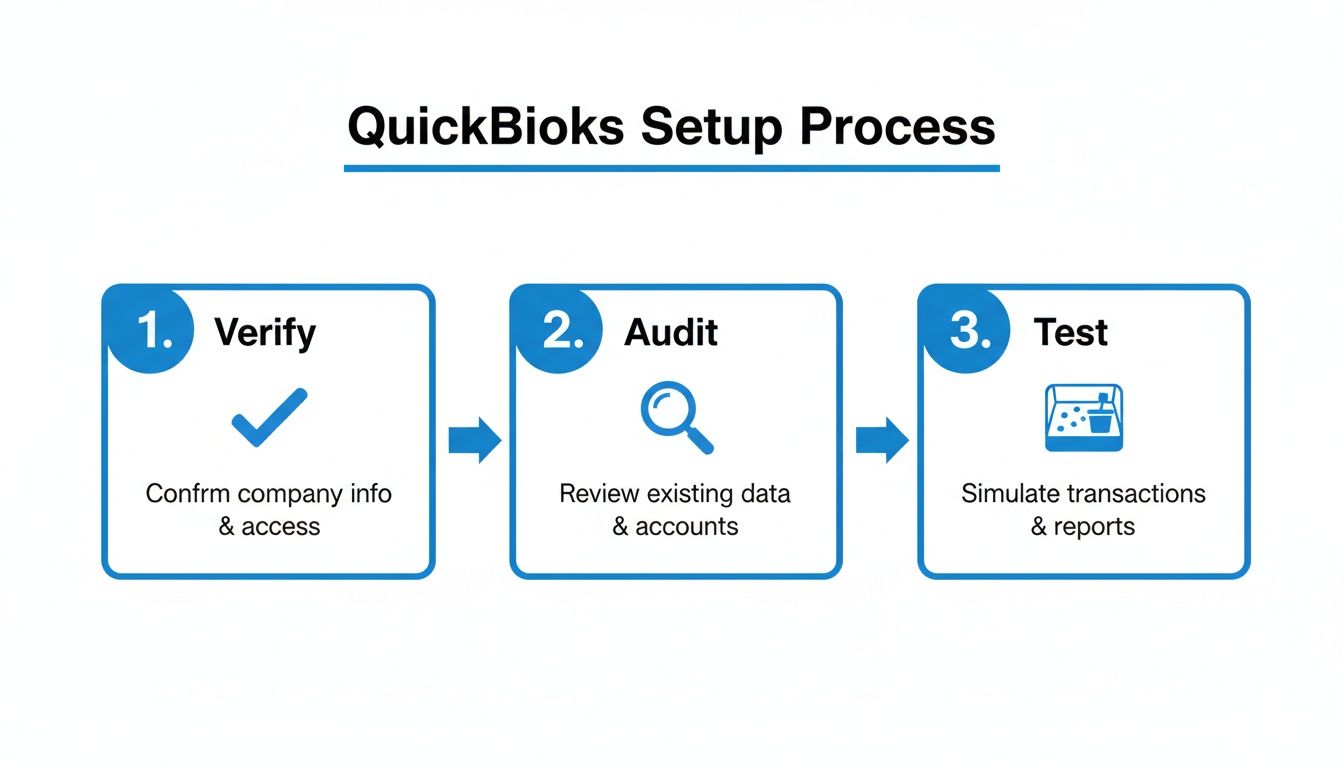
This methodical approach makes sure each step builds a reliable and accurate connection. Don’t skip these checks!
One-way vs. two-way syncs. One of the most important decisions you’ll make is the direction of your data flow. You don’t always want information syncing back and forth. Understanding the difference between a one-way and a two-way sync is key to maintaining data integrity.
- One-Way Sync: Data flows in a single direction. A great example is sending approved invoices from Drum to QuickBooks. You almost certainly don’t need invoice data flowing back into your project management tool, so a one-way push is both efficient and clean.
- Two-Way Sync (Bi-Directional): Data flows back and forth between both systems. This is ideal for information that needs to be current everywhere, like a customer’s billing address. If the accounting team updates a client’s address in QuickBooks, you want that change reflected in Drum automatically.
Choosing the right sync direction prevents accidental data overwrites and keeps each platform acting as the primary source of truth for specific data. For instance, Drum should be the source for project details, while QuickBooks remains the authority on payment status.
Practical mapping examples in action. Let’s get practical. Imagine you’ve just finished a branding project for a new client, “Innovate Inc.” Here’s how proper data mapping would handle the workflow from Drum to QuickBooks:
| Data in Drum | Mapped Field in QuickBooks | Why It Matters |
|---|---|---|
| Project Name: Innovate Inc. Branding | Customer:Job: Innovate Inc.:Branding | Creates a clear link between the project and the financial entry for job costing. |
| Service: “Logo Design - 10 Hours” | Product/Service: “Graphic Design” | Ensures the invoice line item uses your standardized service from the Chart of Accounts. |
| Expense: “Stock Photography License - $150” | Expense Account: “Cost of Goods Sold: Stock Media” | Correctly categorizes project costs for accurate profitability reporting. |
This level of detail is exactly what makes an integration with quickbooks so powerful. It moves beyond simple data transfer and starts automating core accounting functions with real precision.
Ultimately, connecting Drum and QuickBooks is all about creating an automated, intelligent workflow. By carefully mapping your data and choosing the right sync logic from the get-go, you’ll build a reliable system that saves time, eliminates errors, and gives you a crystal-clear view of your business’s financial health.
Automating Your Sync and Ensuring Data Integrity
Alright, you’ve got the systems connected. Now for the fun part: putting your data flow on autopilot. A real integration with QuickBooks isn’t a one-time thing you set and forget. It’s a living part of your daily operations, and the goal is to set up a reliable sync schedule and know, without a doubt, that every piece of data is landing exactly where it should.

Setting your sync schedule. The “right” sync frequency is completely dependent on the rhythm of your business. You’ve got options, from real-time transfers the moment something happens, to scheduled batches that run hourly or daily. It’s all about matching the automation to how you actually work.
A fast-paced digital marketing agency, for example, would probably thrive on a real-time sync. The second a client approves a proposal in Drum, boom, an invoice is instantly created in QuickBooks. This massively speeds up the billing cycle and keeps cash flow healthy, which is absolutely critical when you’re juggling multiple projects every week.
Contrast that with a consulting engineering firm managing long-term, multi-year projects. For them, a nightly sync is likely more than enough. This approach bundles all of the day’s time entries, expenses, and project updates into a single batch. It gives them a clean, daily summary without the noise of constant notifications.
Verifying and testing your connection. Once you’ve scheduled your sync, you can’t just cross your fingers and hope for the best. You need a simple, repeatable validation process. Think of it as a quick quality control check for your automation, one that builds total confidence in your financial data.
The goal of testing is to trace a single transaction from start to finish. If you can confidently follow one piece of data—like a timesheet entry or a new client record—from Drum all the way into QuickBooks and see that it’s flawless, you can trust the process for thousands of future transactions.
Here’s a practical checklist we recommend for testing any new integration:
- Create a Test Invoice: Hop into Drum and generate an invoice for a test client. Make sure it has multiple line items, like a specific service and a reimbursable expense.
- Run the Sync: Either trigger the sync manually or just wait for its next scheduled run.
- Confirm in QuickBooks: Jump over to QuickBooks and find that new invoice. You need to check that the customer name, invoice number, dates, and amounts are all 100% correct.
- Drill Down into Details: Don’t just glance at the total. This is key. Verify that the service line item mapped to the correct “Product/Service” and that the expense was posted to the right expense account in your Chart of Accounts.
This simple exercise is your best defense against data headaches. If you’re looking to really dial in your financial workflows, our guide on invoicing in QuickBooks Online walks through these kinds of best practices in more detail.
Taking just a few minutes to verify your setup now will save you countless hours of painful reconciliation work down the road. It’s the difference between having financial reports you can trust and ones you’re always second-guessing.
Working Through Common Integration Snags
Even with the most careful setup, integrations can sometimes hit a bump in the road. Don’t panic. Most issues are common and totally fixable. Think of this section as your friendly field guide for diagnosing and smoothing out those little wrinkles, so you can get your workflow humming again without the stress.
The goal here is simple: turn a frustrating error message into a quick, satisfying fix. We’ll walk through the most frequent problems we see, explain what’s really going on in plain English, and give you clear, actionable steps to get back on track.
The dreaded “Authentication Failure.” One of the first hurdles you might run into is an authentication error. This is a fancy way of saying Drum couldn’t get the secure “handshake” it needs to talk to your QuickBooks account. It’s less of a major system meltdown and more like showing up to a meeting with the wrong keycard.
Nine times out of ten, this problem comes down to one of these simple causes:
- Expired Credentials: For security, the tokens that let the two systems talk expire over time. This is completely normal.
- Revoked Permissions: An admin on your team might have accidentally (or intentionally) revoked Drum’s access from within QuickBooks.
- Incorrect API Keys: If you’re using a more custom setup, a simple typo in an API key can bring the whole process to a halt.
Luckily, the fix is usually just as simple. Just head over to your integration settings in Drum and re-authenticate your QuickBooks connection. This kicks off a new handshake, generates a fresh security token, and re-establishes that vital link.
When your data mapping goes sideways. Another classic issue is a data mapping conflict. This error pops up when the integration tries to push data that QuickBooks simply doesn’t recognize or know what to do with. It’s the digital equivalent of trying to fit a square peg into a round hole.
For example, imagine syncing an invoice from Drum for a service called “Brand Strategy Session.” If you don’t have a product or service with that exact name in your QuickBooks Products and Services list, QuickBooks will reject it. It has no idea how to categorize that line item.
You’ll see the same thing happen if an invoice uses a tax rate that isn’t set up in your QuickBooks tax settings. To fix this, you just need to pop into QuickBooks and create the missing item or tax rate. Make sure it matches what’s in Drum, name for name, and then you can resync the failed transaction. It should go right through.
Conquering sync timeouts and delays. Ever start a sync and it just… hangs? A timeout or a failed sync often happens when you’re trying to push a massive amount of data all at once, think a year’s worth of invoices or your entire customer database. The server just gets overwhelmed and gives up before the job is done.
The best approach here is to break up large data dumps into smaller, more digestible chunks. Instead of trying to sync your whole client list at once, try syncing it in batches, maybe alphabetically (A-E, then F-K, and so on). This eases the load on the system and dramatically boosts your chances of a successful sync.
Even the most advanced platforms grapple with these kinds of challenges. While 81% of accountants agree that AI has made them more productive, 41% still identify integration challenges as a major roadblock. This just goes to show how critical it is to get these sync issues sorted. You can explore these AI integration findings on techintelpro.com.
A quick guide to common errors. When an error message pops up, it can feel cryptic. But most of the time, it’s QuickBooks’ way of telling you exactly what it needs. Here’s a quick-reference table to help you decode and resolve some of the most frequent integration issues we see.
| Common QuickBooks Integration Error Codes and Fixes | ||
|---|---|---|
| Error Code/Message | Common Cause | How to Fix It |
| “AuthenticationFailed” or “Invalid Token” | Your security token has expired, or Drum’s access was revoked in QuickBooks. | Go to your integration settings and simply click “Reconnect” or “Re-authenticate” to generate a new token. |
| “Business Validation Error: You must select a product/service.” | A line item on an invoice from Drum doesn’t have a matching item in QuickBooks. | Log into QuickBooks and create a new Product/Service that exactly matches the name of the item from Drum. |
| “Stale Object Error” | Someone else was editing the same record (like an invoice or customer) in QuickBooks at the exact moment the sync tried to update it. | Wait a minute or two and then try resyncing the transaction. This usually clears it up. |
| “The name supplied already exists.” | You’re trying to create a new customer or item that already exists in QuickBooks with the same name. | Check for duplicates in QuickBooks. You may need to merge the records or adjust your mapping to link to the existing one instead of creating a new one. |
| “Request has reached the limit of 10000 requests per minute.” | You’re syncing a very large volume of data too quickly, and QuickBooks is throttling the connection to protect its servers. | Break your data into smaller batches. Instead of syncing 1,000 invoices, try syncing them in groups of 100. |
Think of this table not as a list of problems, but as a checklist for success. Understanding what these messages mean is half the battle, and once you know the cause, the solution is usually just a few clicks away.
Your QuickBooks Integration Questions Answered
Even with the best guide in hand, a few specific questions always pop up when you’re in the thick of a QuickBooks integration. It’s totally normal. We’ve fielded hundreds of these from firms just like yours, so we’ve pulled together the most common ones to give you some quick, clear answers.
Think of this as your go-to reference for those “wait, what about…” moments.
QuickBooks Online vs. Desktop integration. This is probably the number one question we get. What’s the real difference between connecting to QuickBooks Online (QBO) and QuickBooks Desktop? In short, it’s all about the technology they’re built on.
QBO is cloud-based and uses a modern API. This just means it’s designed to talk to other web-based tools like Drum smoothly, allowing for real-time data syncs. It’s built for the internet age.
QuickBooks Desktop, on the other hand, is old-school. It usually needs a go-between piece of software called the QuickBooks Web Connector (QBWC). This tool has to run on the same local network as your QuickBooks company file. Because of this, syncs are typically scheduled to run in batches (say, every hour) instead of happening instantly. The setup can feel a bit more clunky due to these network hoops you have to jump through.
Handling custom fields during integration. “But our business tracks this specific thing… can we sync that?” Yes, you absolutely can. This is what custom fields are for, and a solid integration handles them without a problem.
QuickBooks Online has direct support for custom fields on things like invoices and customer profiles. The key is simply mapping them correctly during the setup. You just need to make sure the data types match up between Drum and QBO—for example, a number field in Drum should map to a number field in QBO.
QuickBooks Desktop also supports custom fields. However, getting them to sync often requires more specific mapping rules and a bit more attention to detail during the configuration phase. It’s doable, just a little more hands-on.
Don’t ever treat security as an afterthought—it’s the most critical piece of any integration. For QuickBooks Online, always insist on using OAuth 2.0 to keep credentials locked down. Your API keys should live securely on your server, never in front-end code, and you should only request the minimum API permissions your app needs to do its job.
A one-time import vs. a continuous sync. Does every connection need to be a live, ongoing thing? Nope. Sometimes, all you need is a one-time data import. This is the perfect approach if you’re just trying to move historical data from an old system into a fresh QuickBooks file. You can do this with Intuit’s built-in import tools or a third-party app that lets you upload a CSV file.
But that’s a completely different beast than a true API integration. An import is a single, manual event. A proper integration with QuickBooks, like the one connecting Drum to your books, is designed for continuous, automated syncing. It’s built to keep your operations and your financials perfectly aligned, day in and day out, without you having to lift a finger.
Ready to stop juggling spreadsheets and start running your firm on a single, unified platform?
Drum is the all-in-one operating system for professional services, from proposal to payment. Experience how a seamless QuickBooks integration can transform your operations.
Start your free 14-day trial and discover a better way to run your studio.